
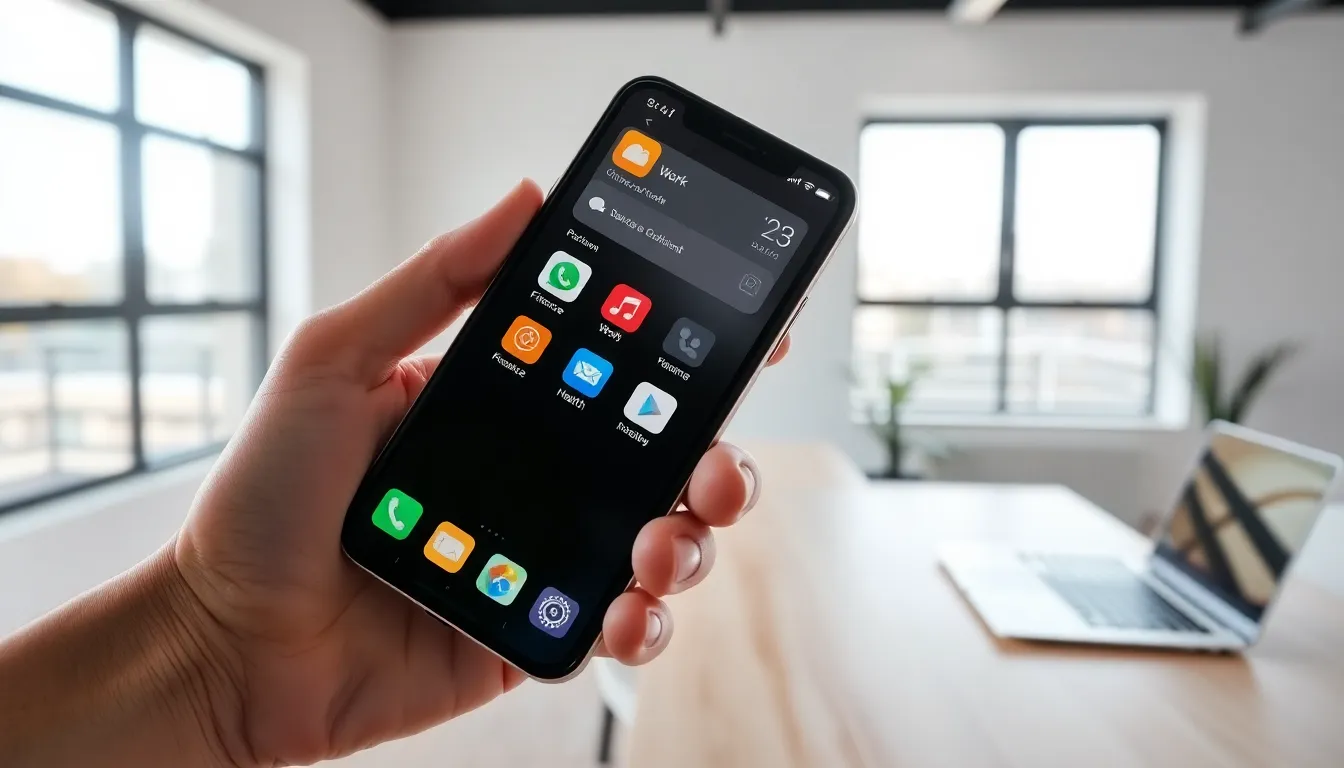

Most people use dozens of apps daily but never unlock their full potential. A few smart apps tips can transform a cluttered phone into a productivity powerhouse.
The average smartphone owner has over 80 apps installed. Yet studies show people regularly use fewer than 10. The rest? They drain storage, send unwanted notifications, and create digital chaos.
This guide covers practical apps tips that make a real difference. From organizing home screens to managing notifications, these strategies help users get more done with less frustration. Whether someone wants to save time, improve focus, or simply enjoy a smoother digital experience, these tips deliver results.
Table of Contents
ToggleOrganize Your Home Screen for Efficiency
A messy home screen wastes time. Every second spent searching for an app adds up. Smart organization is one of the most effective apps tips anyone can apply today.
Group apps by function, not alphabetically. Create folders for categories like “Work,” “Social,” “Finance,” and “Health.” This approach matches how the brain actually thinks. When someone needs to pay a bill, they look for “Finance”, not scroll through apps starting with “V” for Venmo.
Put frequently used apps on the first screen. The apps someone opens 10+ times daily deserve prime real estate. Everything else can live on secondary pages or in folders.
Use widgets wisely. Both iOS and Android offer widgets that display information without opening apps. A calendar widget shows today’s schedule at a glance. A weather widget eliminates the need to open a separate app. These small changes save minutes each day.
Consider the “one-screen” challenge. Some productivity experts recommend fitting all essential apps on a single home screen. It forces users to identify what truly matters. The result? Less scrolling, faster access, and a cleaner digital space.
One often-overlooked apps tip: remove apps from the home screen entirely if they’re time-wasters. Social media apps buried in folders are harder to access impulsively.
Master Notification Management
Notifications destroy focus. Research from the University of California found that it takes an average of 23 minutes to regain concentration after an interruption. Poor notification settings turn phones into constant distraction machines.
Audit every app’s notification permissions. Most apps request notification access during installation. Users often tap “Allow” without thinking. The fix? Go to Settings > Notifications and review each app individually. Does a shopping app really need to send push notifications? Probably not.
Use notification scheduling. Both major operating systems now offer “Focus” or “Do Not Disturb” modes. These apps tips features let users set specific times when only critical notifications come through. During work hours, silence everything except calls and messages from key contacts.
Disable badge icons for non-essential apps. Those red circles with numbers create anxiety and pull attention. Email showing 847 unread messages? That badge serves no helpful purpose for most people.
Batch notifications instead of receiving them instantly. Some apps allow notification summaries. Instead of 15 separate pings throughout the day, users receive one summary at a scheduled time.
Here’s a practical apps tip: spend 10 minutes this week reviewing notification settings. The time investment pays off through better focus and reduced stress.
Leverage Built-In Features You Might Be Missing
Every operating system includes powerful tools that most users never discover. These hidden apps tips can replace third-party downloads entirely.
Screen Time and Digital Wellbeing tools track app usage automatically. They reveal which apps consume the most time, often with surprising results. Users can set daily limits for specific apps or categories.
Accessibility features benefit everyone. Voice control lets users operate phones hands-free. Text-to-speech reads articles aloud during commutes. These aren’t just for users with disabilities: they’re productivity shortcuts anyone can use.
Keyboard shortcuts and text replacement save typing time. Set up shortcuts like “@@” to expand into a full email address. Create abbreviations for frequently typed phrases. This apps tip alone can save hours over time.
Built-in scanning tools eliminate the need for separate scanner apps. Both iOS and Android cameras can scan documents, QR codes, and even extract text from images.
Native password managers have improved significantly. Apple’s Keychain and Google’s Password Manager now offer features that rival paid alternatives. They auto-generate strong passwords and sync across devices.
Many users download third-party apps for functions their phones already handle. Before installing something new, check if a built-in solution exists. It’s one of the simplest apps tips to follow.
Keep Your Apps Updated and Secure
Outdated apps create security vulnerabilities. Hackers actively exploit known bugs in older app versions. Regular updates are essential apps tips for protecting personal data.
Enable automatic updates for most apps. This ensures security patches install without manual intervention. Both iOS and Android offer this option in their respective app stores.
Review app permissions periodically. Apps sometimes request permissions they don’t need. A flashlight app asking for contact access? That’s a red flag. Go to Settings > Privacy and check what each app can access.
Delete apps that haven’t been updated in months. Developers who abandon their apps leave security holes open. If an app hasn’t received an update in 6+ months, consider finding an alternative.
Check for suspicious behavior. Apps that suddenly drain battery faster or use excessive data might be compromised. Monitor these metrics through built-in device settings.
Use two-factor authentication on apps that support it. Banking apps, email clients, and social media accounts all benefit from this extra security layer. It’s one of the most important apps tips for protecting sensitive information.
Security-focused users should also review apps before downloading. Check ratings, read recent reviews, and verify the developer’s legitimacy. A few minutes of research prevents major headaches later.
Optimize Storage and Performance
Full storage slows everything down. When phones run low on space, apps crash, photos won’t save, and overall performance suffers. These apps tips help reclaim valuable storage and speed up devices.
Clear app caches regularly. Apps store temporary data that accumulates over time. Social media apps and browsers are particularly bad offenders. On Android, users can clear caches through Settings > Storage. iOS users often need to delete and reinstall apps to clear cached data.
Offload unused apps. iOS offers an “Offload Unused Apps” feature that removes the app but keeps its data. When users need the app again, they reinstall it and their data returns. This apps tip frees space without losing information.
Review photo and video storage. Media files consume the most space for most users. Cloud backup services like Google Photos or iCloud can store full-resolution copies while keeping smaller versions on the device.
Identify storage hogs. Both operating systems show which apps use the most space. Games and streaming apps often top the list. Users might be surprised to find apps storing gigabytes of offline content they forgot about.
Restart devices weekly. This simple apps tip clears temporary files and refreshes system processes. Many performance issues resolve with a basic restart.
For Android users, disabling bloatware, pre-installed apps that can’t be fully removed, stops them from running in the background. This improves both storage efficiency and battery life.